WooCommerce Integration

WooCommerce Integration Documentation and Videos
hpCommerce Orion integrates to WooCommerce. Orion's WooCommerce integration is an optional feature of Orion. WooCommerce is an eCommerce plug in for WordPress. It allows merchants to install a "shopping cart" in a WordPress site and to sell goods and services. Orion's WooCommerce integration is part of its suite of order fulfillment tools. Orion links to many "sales channels" and eCommerce solutions to collect orders to fulfill within Orion's order fulfillment process. In the case of WooCommerce Orion provides these features:
- Automatic retrieval of completed orders. These are added to Orion as open sales orders and are ready to be fulfilled using tools within Orion:
- Orders are configured by you to be retrieved every XX minutes. You establish and control this schedule. You can even control "time blocks" for retrieval by day.
- Each time orders are retrieved Orion can send a notification to as many email contacts as you wish to update all concerned to the status of order retrieval. You no longer have to monitor your website for orders. Orion does this for you and notifies you as needed.
- You can control the assignment of new sales to a salesperson, department, event and job number. This makes it easy to keep your WooCommerce orders "compartmentalized".
- New customers are added as needed to Orion's customer master but duplicate customers are avoided by looking first for existing customer matches by email address. This will keep your customer history all intact.
- You can even manually trigger Orion to retrieve orders as needed.
- Automatically update WooCommerce orders with Shipping Tracking Data. As tracking numbers are added to sales orders and/or invoices that originated from WooCommerce Orion will push these tracking numbers to the associated WooCommerce order. If you are using Orion's optional Integrated Shipping System for UPS and FedEx shipping these tracking numbers are automatically added to sales orders and invoices. Or you can manually add shipping tracking numbers to orders and invoices and these are automatically uploaded as well.
- Automatically update the "status" of WooCommerce orders. As orders are successfully shipped you can have Orion update the status of WooCommerce orders too.
- Automatically update products that are listed on your WooCommerce site.
- You can configure Orion to update product data every XX minutes.
- Each time product data is updated Orion can send a notification to as many email contacts as you wish to update all concerned that products are being updated.
- Choose the level of product synchronization
- Full data upload: Add, update, and remove products by maintaining them once in Orion and having Orion update your product catalog on WooCommerce, including quantity and pricing. See the Orion to WooCommerce field mapping documentation here for more information on how Orion can keep your product catalog up-to-date from one place.
- Quantity available only: Maintain your product catalog separately on WooCommerce and have Orion automatically update product quantity available on your WooCommerce site. You can now be assured that products on your website accurately reflect what you have available to sell. Even if you have Orion integrated to multiple sales channels and eCommerce solutions Orion will keep all in synch with what you have available:
- Orion automatically integrates to several vendor's quantity available. Your website can also reflect what your vendors have available for the products that you have listed on your site.
- Orion can even calculate quantity available for kits and send this data to your website too.
- This option can be combined with pricing updates.
- Pricing only: Maintain your product catalog separately on WooCommerce and have Oroin automatically update pricing on your WooCommerce site. This option can be combined with quantity available updates.
To learn more about these features and to learn how to configure Orion's WooCommerce integration please read more below.
| Topic | Notes | Video (click icon to watch) |
|---|---|---|
| WooCommerce Requirements | To learn more about the minimum requirements that Orion needs for your WordPress and WooCommerce to meet please read this WooCommerce help page on REST API Requirements. | |
| Obtaining WooCommerce "keys" for the Orion integration | To learn how to obtain the Consumer Key and Consumer Secret that Orion will need to integrate to your WooCommerce site please read this WooCommerce help page on REST API keys. Actually this is super easy:
| |
| Gaining access to Orion's WooCommerce integration | Orion's WooCommerce integration is an optional feature. An hpCommerce Software technician will generate a special Activation Key for you to access Orion's WooCommerce features. | |
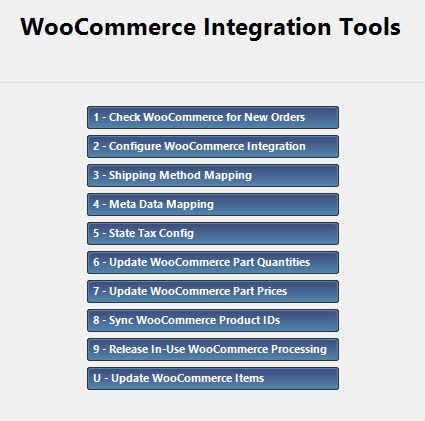
| Navigating to Orion's WooCommerce Integration tools | Almost all of Orion's WooCommerce integration tools are located on the WooCommerce Integration Tools menu found at [M-E-W]:
Below is a summary of each of the menu options. In the following sections of this page each menu options is covered in more detail:
| |
The next section covers each of the above menu option in more detail if needed | ||
| 1. Check WooCommerce for New Orders [M-E-W-1] | Use of this option is straight forward. Select the option and confirm that you want to check for new orders. Orion will perform the check and present you with a summary at the end of checking. This summary will let you know how many new orders were created, how many existing customers were updated and how many new customers were created.
| |
| 2. Configure WooCommerce Integration [M-E-W-2] | Please see the separate section below for a detailed explanation of this form. | |
| 3. Shipping Method Mapping [M-E-W-3] | Use this tool to map WooCommerce shipping methods to Orion's shipping methods. This is done so that the shipping method selected by the shopper is accurately reflected on the order that is automatically created in Orion. This shipping method is then passed into Orion's optional Integrated Shipping System to get the correct shipping documents created.
| |
| 4. Meta Data Mapping [M-E-W-4] | If you have defined special data fields on your WooCommerce site that you use to collect special information from your shopper you can use this feature of the Orion's WooCommerce integration to translate this data into orders in Orion. In WooCommerce these are called meta data fields. If mapped, these fields will be added to a new order as "comment" lines on the order.
| |
| 5. State Tax Configuration [M-E-W-5] | This option allows you to control, at the state level, how Orion's TaxJar integration is handled. Orion integrates to TaxJar for street address level sales tax rates. For more information about Orion's TaxJar integration search this help site for TaxJar. Adding a state to this section allows you to configure if TaxJar is to be updated with sales information for WooCommerce orders and if TaxJar is to be consulted for sales tax information when Orion creates a new WooCommerce order.
| |
| 6. Update WooCommerce Part Quantities [M-E-W-6] | Use of this option is straight forward. Select the option and confirm that you want to update part quantities. Orion will perform the check and present you with a summary at the end of push of quantity available information to your WooCommerce site.
| |
| 7. Update WooCommerce Part Prices [M-E-W-7] | Use of this option is straight forward. Select the option and confirm that you want to update part prices. Orion will perform the check and present you with a summary at the end of push of pricing information to your WooCommerce site.
| |
| 8. Sync WooCommerce Product IDs [M-E-W-8] | This option is only used when the WooCommerce Part Quantity or Part Pricing updates are turned on and is used to create a mapping between Orion products and WooCommerce products to allow Orion to update those items. Orion will perform the check and present you with a summary at the end of push of syncing the IDs.
| |
| 9. Release In-Use WooCommerce Processing [M-E-W-9] | This is only used when Orion believes a process is currently updating WooCommerce but that isn't the case. Orion keeps track of when these updates are occurring so that processes do not try to update products at the same time. This can be overridden using this function if something unexpected happened, like a machine rebooted, and it is known that another process is not currently updating WooCommerce. | |
| 10. Update WooCommerce Items [M-E-W-U] | Use of this option is straight forward. Select the option and confirm that you want to update product data. Orion will perform the check and present you with a summary at the end of push of product information to your WooCommerce site.
| |
Configure WooCommerce Integration [M-E-W-2] | This form has several tabs for configuration options for the WooCommerce integration. They are detailed below. | |
| Introduction | This section covers the main form used to configure how Orion interacts with WooCommerce. This form is found at [M-E-W-2] Configure WooCommerce Integration. Once this form is used to configure the integration it is rarely referenced as the parameters for the integration seldom change. Each option on the form is covered below in detail. | |
| Use and Testing | Steps for using this form are:
| |
| Account Info | This tab covers general account information for connecting to the WooCommerce site.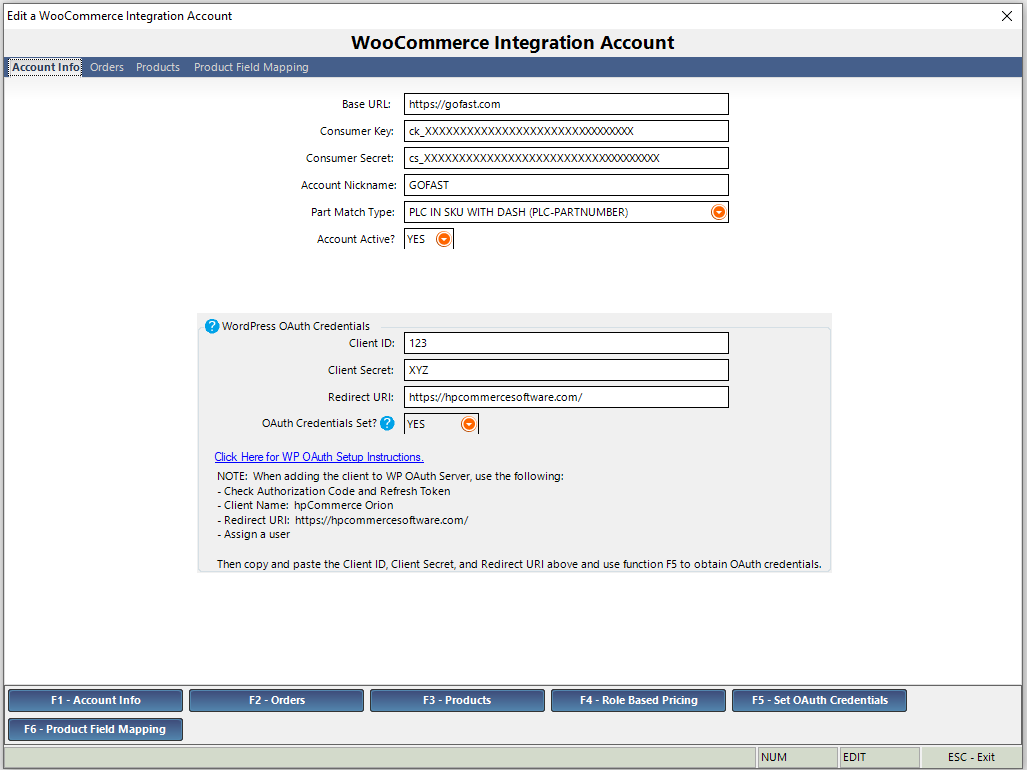 | |
| Base URL | This is the full URL for the homepage of your WooCommerce website. It must be a fully formed URL. A sample would be https://gofast.com Make sure not to include www in the URL. | |
| Consumer Key | This key is generated by your WooCommerce site. For more information see the section above labeled "Obtaining WooCommerce "keys" for the Orion integration" | |
| Consumer Secret | This key is generated by your WooCommerce site. For more information see the section above labeled "Obtaining WooCommerce "keys" for the Orion integration" | |
| Account Nickname | This is a name that you assign to this account set up. It is referenced in other locations such as the WooCommerce Part ID cross reference. Once this nickname is created it is not to be changed. | |
| Part Match Type | Options are PLC in Meta Data field or PLC in SKU with a dash separating PLC and Partnumber. For a detailed explanation of part matching see the section below labeled "How Parts in Orion are matched to Parts on WooCommerce". | |
| Account Active? | If you want to turn off Orion's integration to your WooCommerce site then set this option to NO. | |
| WordPress OAuth Credentials | For the full product update only, Orion can push product images and attachments to WooCommerce. To do so, you must retrieve REST API credentials from WordPress. This requires a WooCommerce plug-in called WP OAuth Server - Pro.
| |
| Orders | This tab covers how Orion should download orders from WooCommerce.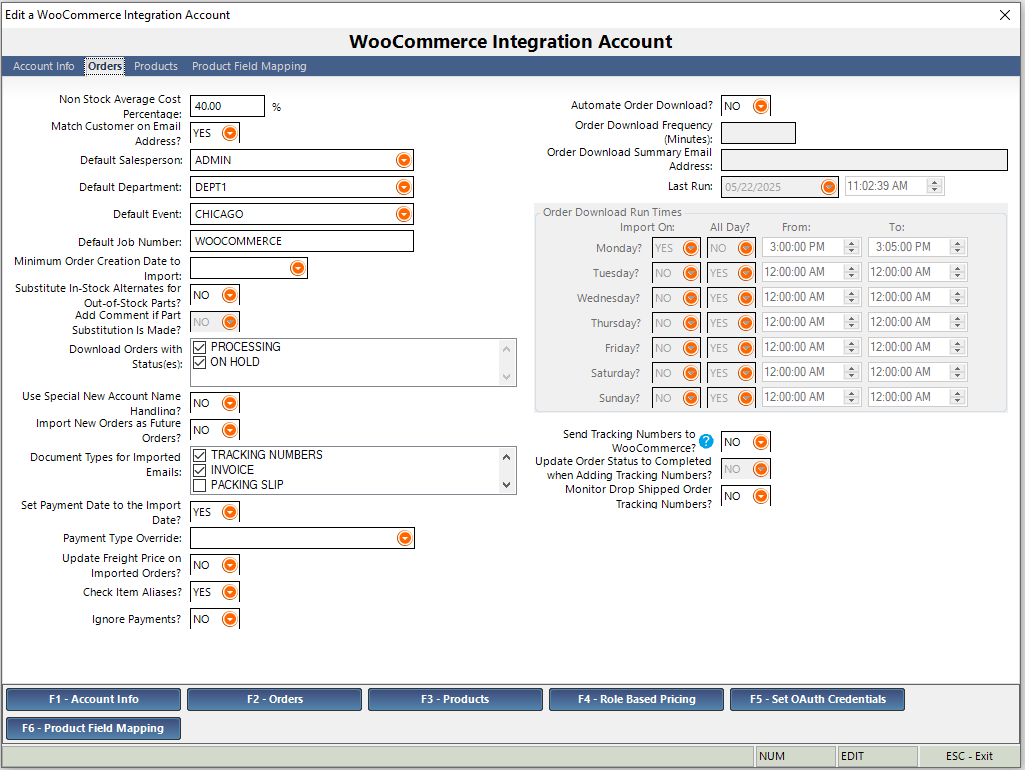 | |
| Non Stock Average Cost Percentage | If an item gets imported onto a sales order and it cannot be matched to an item in Orion's Part Number Master the item will be added to the order as a "non-stock" item. It will be given price assigned by the web order. It will be assigned a cost based upon the percentage that you provide with this option. The purpose of this feature is to prevent items from being sold at 100% profit. | |
| Match Customer on Email Address? | During the order import process, to prevent duplicate customers from being added to Orion, you can set this feature to YES. If set to YES the order import process will attempt to match up to an existing customer in Orion by the shopper's email address. If this option is set to NO then the first time that a new shopper is encountered the order import process will create an entirely new customer in Orion's Customer Master. Regardless of how this option is set the WooCommerce Customer ID is added to the customer. This means that the second time moving forward that a shopper is encountered on an order import it will not be duplicated again. This Customer ID will be used to match up the customer on the order with an existing customer in Orion. | |
| Default Salesperson | During the order import a salesperson is assigned to the order. It is easy to search for orders by salesperson by using [M-G-F7]. Assigning all WooCommerce orders to the same salesperson can make it easy to find open WooCommerce orders and also can facilitate sales reporting on reports such as [M-L-F5-F4] Sales Analysis by Salesperson. You can create new and edit existing salespeople via [S-F4] Employee Maintenance. | |
| Default Department | During the order import a department can optionally be assigned to an order. You can create new and edit existing departments via [S-1] Shop Departments. | |
| Default Event | During the order import an event can optionally be assigned to an order. You can create new and edit existing events via [S-2] Event Codes. | |
| Default Job Number | During the order import a job number can optionally be assigned to an order. It is easy to search for orders by job number by using [M-G-F6] Open Orders and many other open order search forms. | |
| Minimum Order Creation Date to Import | When you start using Orion's WooCommerce integration you will want to set this date to close to the current day's date. The first time that Orion checks for new WooCommerce orders it will not import any orders that are older than this date. In most cases you would not want to import old orders as new, open orders in Orion. Once this date is initially set you would rarely have the need to change it. Orion keeps track of the WooCommerce orders that it has imported and it will not import it more than once. | |
| Substitute In-Stock Alternates for Out-of-Stock Parts? | If this feature is turned on here is what will happen .... during the order import process if you have alternates defined for an item being imported and that item is out of stock (not enough available to fill the quantity ordered by the shopper) Orion will cycle through the defined alternates to find an alternate that is in stock (available). If one is found then this item will be substituted for the item ordered by the shopper. If no alternate is found then the item ordered by the shopper will be added to the order. Note that the alternate must have an in stock (available) amount that is equal to or greater than what the shopper ordered. | |
| Add Comment if Part Substitutions are Made? | If alternate substitutions is turned on then this feature can be set to YES or NO. If set to YES then a comment line will be added to the order detailing the substitution that was made. | |
| Download Orders with Status(es) | This option allows you to select the WooCommerce order statuses to download to Orion. If a WooCommerce order does not have one of the selected statuses it will not be downloaded by Orion. | |
| Use Special New Account Name Handling? | If this is set to YES then new customers are added to Orion using these data rules:
If this option is set to NO then new customers are added to Orion using these data rules:
| |
| Import New Orders as Future Orders? | If this option is set to YES then orders imported from WooCommerce will assigned the Order Type of Future Order. Otherwise the Order Type will be Sales Order. | |
| Document Types for Imported Emails | Use this option to control the pre-selection of email document types for new customers created as part of the WooCommerce order import process. | |
| Set Payment Date to the Import Date? | If this option is set to YES then all imported payments for WooCommerce orders will be dated for the date of import. If set to NO then the payment date will be whatever is provided by WooCommerce. | |
| Payment Type Override | If this option is set then all imported payments for WooCommerce orders will be recorded as the type selected. If it is not set then the payment type will be PayPal if WooCommerce indicates it is a PayPal payment and Internet payment for all others. | |
| Update Freight Price on Imported Orders? | If this option is set to YES then you will be able to override the freight charge that WooCommerce assessed for the order. If set to NO then the WooCommerce assessed freight charge will be honored and locked for the the order. | |
| Check Item Aliases? | If set to YES then Orion will check for Aliases when importing new WooCommerce orders. In Orion you can establish an unlimited number of Aliases for a "stocking" part number. For each Alias you can also specify a "eCommerce Import Qty Multiplier". When an Alias is found for an imported item it will "transform" the item's product identifier into the matching stocking part number and apply the Qty Multiplier to arrive at the "Ordered Quantity" for the stocking part number. | |
| Ignore Payments? | Ignore any payment data that may come in with WooCommerce orders. | |
| Automate Order Download? | If set to YES then WooCommerce orders can be set to download into Orion automatically. If set to NO orders can still be downloaded by using the manual feature found at [M-E-W-1]. | |
| Order Download Frequency (Minutes) | When Orion is configured to download WooCommerce orders automatically how frequently should it check WooCommerce for new orders? This parameter is set to minutes. We suggest 60 minutes. | |
| Order Download Summary Email Address | An email is sent to one or more addresses whenever Orion attempts the retrieval of orders from WooCommerce. Separate multiple email addresses by commas. The email message will contain information about when WooCommerce was checked for orders and a summary of count of new orders added to Orion and new customers added to Orion and customers updated. | |
| Last Run | This is the date and time that Orion automatically checked for new WooCommerce orders. NOTE: When WooCommerce is manually checked for orders using [M-E-W-1] the Last Run date and time is not updated. | |
| Order Download Run Times | You can use this section of the configuration form to control when Orion will automatically check for orders if "Automate Order Download" is set to YES. For each day of the week you can control these parameters:
| |
| Send Tracking Numbers to WooCommerce? | If this option is set to YES Orion will automatically send to WooCommerce any shipping tracking data that is added to a WooCommerce order or invoice. These tracking numbers can be from Orion's Integrated Shipping system, could be imported via Orion's integration to 3rd party vendors, such as Motor State Distributing, or tracking numbers that are manually added by you. Sending the tracking data is not done on a predetermined schedule. Once Orion detects a new tracking number it will automatically send the tracking data to WooCommerce. IMPORTANT Orion will send the tracking data to WooCommerce via the available API integration but WooCommerce needs to be configured to accept the data. The "tracking extension" in WooCommerce needs to be added. For more information see this documentation on the WooCommerce site. | |
| Update Order Status to Completed when Adding Tracking Numbers? | If this option is set to YES and "Send Tracking Numbers to WooCommerce" is set to YES, as part of sending tracking data to WooCommerce Orion can also update the Order Status of a WooCommerce order to "Completed" on your WooCommerce website. | |
| Monitor Drop Shipped Order Tracking Numbers? | This option is used in conjuction with the Tracking Number Monitoring for Drop Shipped Orders function on [S - F5] Purchasing Setup. If this feature is being used and this option is set to YES, Orion will include orders downloaded from WooCommerce when monitoring for new tracking numbers from vendors. | |
| Products | This tab covers how Orion should update product information on WooCommerce.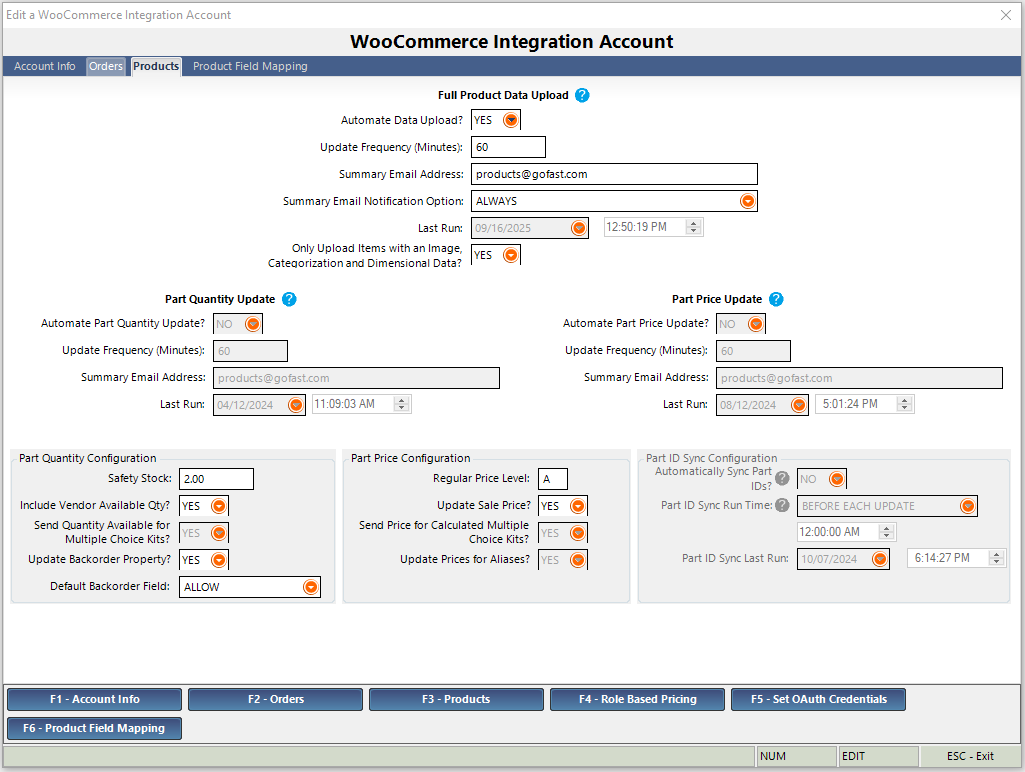 | |
| Full Product Data Upload | The full product data upload feature allows Orion to maintain the WooCommerce catalog for you. When used, Orion will add, update, and delete products on WooCommerce so that you only need to mainatin product information in Orion. When this feature is turned on in Orion, Orion will become the point-of-truth for all data fields covered in the Orion to WooCommerce field mapping documentation here. To prepare, please consider the following:
| |
| Automate Data Upload? | To automatically update product data on WooCommerce set this option to YES. Orion will perform this update activity based on the schedule you establish below. | |
| Full Product Data Upload Update Frequency (Minutes) | When Orion is configured to automatically update product data on WooCommerce how frequently should it perform this activity? This parameter is set to minutes. We suggest 60 minutes. | |
| Full Product Data Upload Summary Email Address | An email is sent to one or more addresses whenever Orion attempts the update of product data on WooCommerce. Separate multiple email addresses by commas. The email message will contain information about when WooCommerce was updated and a summary of the activity. | |
| Full Product Data Upload Summary Email Notification Option | The circumstances under which the summary email should be sent. Options are ALWAYS, NEVER, ONLY ON ERROR. | |
| Full Product Data Upload Last Run | Last date and time that the product data update was performed by Orion. | |
| Only Upload Items with an Image, Categorization and Dimensional Data? | If this option is set to YES, Orion will only add a new simple product to WooCommerce if it has:
Orion will only add a new master product to WooCommerce if it has:
| |
| Part Quantity Update | This option is used to update quantity available only for products that you have listed on WooCommerce. The product catalog is maintained separately in WooCommerce and Orion updates products that it matches to Orion products via the Part Match Type specified above. | |
| Automate Part Quantity Update? | To automatically update the quantity available for products that you have listed on WooCommerce set this option to YES. Orion will perform this update activity based on the schedule you establish below. | |
| Part Quantity Update Frequency (Minutes) | When Orion is configured to automatically update quantity available on WooCommerce how frequently should it perform this activity? This parameter is set to minutes. We suggest 60 minutes. | |
| Part Quantity Update Summary Email Address | An email is sent to one or more addresses whenever Orion attempts the update of quantity available for items listed on WooCommerce. Separate multiple email addresses by commas. The email message will contain information about when WooCommerce was updated and a summary of the activity. | |
| Part Quantity Update Last Run | Last date and time that the quantity update was performed by Orion. | |
| Part Price Update | This option is used to update pricing only for products that you have listed on WooCommerce. The product catalog is maintained separately in WooCommerce and Orion updates products that it matches to Orion products via the Part Match Type specified above. | |
| Automate Part Price Update? | To automatically update the pricing for products that you have listed on WooCommerce set this option to YES. Orion will perform this update activity based on the schedule you establish below. | |
| Part Price Update Frequency (Minutes) | When Orion is configured to automatically update pricing on WooCommerce how frequently should it perform this activity? This parameter is set to minutes. We suggest 60 minutes. | |
| Part Price Update Summary Email Address | An email is sent to one or more addresses whenever Orion attempts the update of pricing for items listed on WooCommerce. Separate multiple email addresses by commas. The email message will contain information about when WooCommerce was updated and a summary of the activity. | |
| Part Price Update Last Run | Last date and time that the pricing update was performed by Orion. | |
| Part Quantity Configuration | The options in this section are used by both the Full Product Data Upload and the Part Quantity Update to determine how quantity should be updated on WooCommerce. | |
| Part Quantity Update Safety Stock | Orion will subtract this quantity from the quantity available and post the difference to WooCommerce whenever an item is updated either automatically or via [M-E-W-6]. | |
| Include Vendor Available Qty in Part Qty Update? | If this option is set to YES then Orion will combine your item's quantity available with any quantity available from vendors that you are integrated with. An example is Orion's Motor State Distributing integration. Via Orion's integration to Motor State it captures the current available inventory that Motor State is reporting for items that match up between Orion and Motor State. Orion stores this "vendor available" and can supplement your available inventory with that of the vendor too. | |
| Send Quantity Available for Multiple Choice Kits? | If this option is set to YES then Orion will calculate the maximum quantity available for kits and multiple choice kits based upon the current available quantity of kit components. In the case of multiple choice kits the default option for a multiple choice option will be used for the calculation. | |
| Update Backorder Property? | If set to YES, Orion will set a field in WooCommerce indicating if an item can still be ordered if it does not have any quantity available. Options are Allow (displays an item as “In Stock”), Allow but Notify Customer (displays an item as “Available on Backorder”), and No. This can be set at the item-level in Orion, with the default being the option selected for the next configuration item. Updating the backorder field in WooCommerce requires backordering to be turned on in Orion. | |
| Default Backorder Field | The backorder option to use if backorders are allowed for an item and the WooCommerce backorder option for that item is set to default. | |
| Part Price Configuration | The options in this section are used by both the Full Product Data Upload and the Part Price Update to determine how pricing should be updated on WooCommerce. | |
| Regular Price Level | This is the Orion price level that will be sent for a product’s regular price. | |
| Update Sale Price? | If this is set to YES, Orion will send any sale pricing and sale date range configured for an item. | |
| Send Price for Calculated Multiple Choice Kits? | This must be set to YES when full data upload is selected and means that Orion will calculate the price for multiple choice kits based on the default multiple choice option configured for the multiple choice item. | |
| Update Prices for Aliases? | This option only applies when using Part Price Update feature and is not applicable when using the full data upload feature. It allows pricing to be updated for items on WooCommerce that are represented in Orion as a part alias. You can define an alias for a part in Orion with an eCommerce multiplier which will allow Orion to multiply the price by the multiplier before sending the price to WooCommerce. | |
| Part ID Sync Configuration | The options in this section are used by the Part Quantity Update and Part Price Update to determine if and when Orion should attempt to sync IDs of WooCommerce products to products in Orion. Orion can automatically map WooCommerce IDs to Orion products via the Part Match Type defined above, which allows Orion to update the quantity and pricing for those products on WooCommerce. | |
| Automatically Sync Part IDs? | To automatically synchronize IDs for products that you have listed on WooCommerce set this option to YES. Orion will perform this update activity based on the schedule you establish below. | |
| Part ID Sync Run Time | This option allows you to specify how often part IDs should be synced. If your WooCommerce catalog has a lot of products, particularly variable products, syncing IDs can be a resource consuming process. Choosing "AT SPECIFIED TIME" consumes less resources because the sync will only happen once a day. This means that it can take up to 24 hours for Orion to start syncing quantities or prices for new items. Choosing "BEFORE EACH UPDATE" means that syncing quantities or prices for new items will occur the next time the updates run, but will consume more resources because the entire product catalog is retrieved from WooCommerce each time missing product IDs are found. To force a sync of product IDs at any time, use function [M - E - W - 8] Sync WooCommerce Product IDs. | |
| Part ID Sync Last Run | Last date and time that the product ID sync was performed by Orion. | |
| Product Field Mapping | This tab covers optional field data that can be sent to WooCommerce by the Full Product Data Upload feature. More information can be found in the Orion to WooCommerce field mapping documentation here.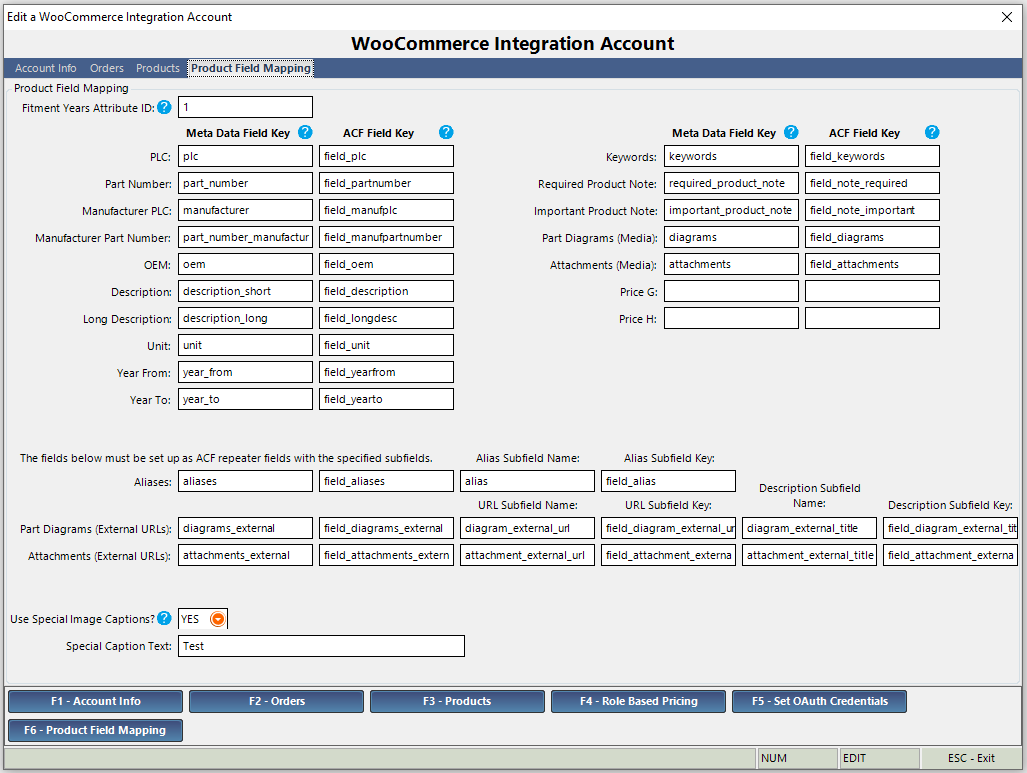 | |
| Fitment Years Attribute ID | Orion can send a list of years determined by the Year From and Year To dates for the product to WooCommerce as an attribute of the product. To use this feature, create a global attribute in WooCommerce and copy the WooCommerce ID of this attribute into this option in Orion. | |
| PLC ... Price H | Orion lists out many fields that can be mapped to meta data fields in WooCommerce. In addition, if you choose to use the Advanced Custom Fields (ACF) plug-in, Orion can send the fields in a way that this plug-in can use this data. For each of the following fields, specify the meta data field key you would like to map the data to in WooCommerce. Additionally, if using ACF, specify the ACF field key for each field. Orion fields that can be mapped are:
| |
| Aliases ... Attachments (External URLs) | These fields can only be sent when used in conjunction with ACF and are set up as repeater fields with appropriate subfields.
| |
| Use Special Image Captions | If this option is set to YES, images will be added with Title and Alt Text of the following format: [Year From]-[YearTo] [Special Caption Text] [Alternate Web Title]. If this option is set to NO, images will be added with Title and Alt Text set to the Caption specified in Orion. | |
| Special Caption Text | This is used when Use Special Image Captions is set to YEs as part of the image description. | |
| Function Menu | The following covers the menu options on the bottom of the form. | |
| F1 - Account Info | Selects the Account Info tab. | |
| F2 - Orders | Selects the Orders tab. | |
| F3 - Products | Selects the Products tab. | |
| F4 - Role Based Pricing | If you elected to use the Addify B2B plug-in for setting role-based pricing, use this option to configure how Orion will send role-base prices. You will add a rule for each role you created in WooCommerce and select the Orion price level you wish to send for that role. | |
| F5 - Set OAuth Credentials | Use this option to obtain WordPress OAuth credentials if you want Orion to upload images and / or attachments to WooCommerce. See the WordPress OAuth Credentials section above for more information. | |
| F6 - Product Field Mapping | Selects the Product Field Mapping tab. | |
| How New Orders are Created and processing notes | Orion can check for new WooCommerce orders either automatically or manually. Use the settings on [M-E-W-2] to configure how the automatic feature would work and you can use [M-E-W-1] to manually check for orders too. Regardless of the method of retrieval the same activity takes place. Below are some notes on how Orion retrieves and processes WooCommerce orders:
| |
| How Customers are matched up, edited and added | When new orders are imported into Orion via its WooCommerce integration activity with Orion's customer master also occurs. There are three things that can happen:
How does Orion try to match up to existing Customers? When Orion imports a new order it tries to match up the customer on the order with an existing customer in Orion. Orion does not want to create a duplicate customer if it can be avoided. If a duplicate customer is created you can use Orion's Customer Consolidation tool found at [H-F5]. Matches to existing customers are found in two ways:
How are new Customers Created? If no match is found for the customer on a WooCommerce order then Orion will create a new customer in the customer master. It uses the available information from WooCommerce to do this. Orion's defaults for terms and tax zone are also used. The WooCommerce External ID is also stored with the customer. When a match is found to an existing customer what updates are made?
Special Rules for Guest Checkout Orders When a Guest Checkout order is processed by Orion it will ignore the WooCommerce Customer Account Number of ZERO that will always be passed by a Guest Checkout order and will instead try to match the shopper's email address with an existing account address in Orion and assign the order to that customer in Orion. Otherwise if no match is found for a Guest Checkout order it will create a new customer in Orion for the order. | |
| How Parts in Orion are matched to Parts on WooCommerce | Parts that are on orders from WooCommerce must be matched to an existing part in Orion. If no match is found then the item is added to a Sales Order in Orion with a Line Type of "Non-Stock". Orion does not ignore unmatched items. They are added to the Sales Order with the PLC, Partnumber, Description and Pricing that is on the WooCommerce Order. To make a match between a part that is on a WooCommerce order and parts that are in Orion a match is attempted using the PLC (Product Line Code) of the part in Orion and the Partnumber in Orion. While Orion is extremely structured in how partnumbers are handled that is not the case with WooCommerce. There are several ways that matching product data can be coded in to WooCommerce. On your WooCommerce site you may not be storing a Product Line Code (PLC) with partnumbers. In this case you may elect to define a field at the product data level to contain the PLC. Option 1 for Item Matching - Custom Metadata Field method In this option part matching in Orion for orders from WooCommerce expects the PLC to be in a custom metadata field with a key of "plc" and the part number in the WooCommerce SKU field:
Option 2 for Item Matching - SKU method (Orion Release 8.0.18 or higher) In this option part matching in Orion for orders from WooCommerce expects the PLC and part number to be in the WooCommerce SKU field in a structured format:
Regardless of your situation we can work with you to help match up your product data to the structured data in Orion. Special Notes for Updating Quantity Available and Pricing on WooCommerce - External Part ID If you are using the feature of Orion to update the Quantity Available for items that are listed on your WooCommerce site then Orion must know the WooCommerce External Part ID. This Part ID is stored with each partnumber in Orion that you want to correspondingly update on your WooCommerce site. You can have Orion automatically match products via the part match type specified above. This is configured on M - E - W - 2. Alternatively, you can import these IDs manually. Orion has data tools to help you to import this data from your WooCommerce site. WooCommerce can export this data for use in Orion. To learn more see the sections below on the WooCommerce data tools and the WooCommerce features on Orion's Part Maintenance form. | |
How Products are Updated | Depending on which product update option you choose, whenever the related information changes in Orion (quantity available, pricing, or any of the fields mapped in the full product sync) the part is marked as needing to be "Updated on WooCommerce". This happens automatically. Activities that can cause this to happen include but are not limited to:
If Orion is configured to update any product information on your WooCommerce site then Orion will automatically check for any parts that are marked for "Update WooCommerce" and the updates are sent to WooCommerce. Once this is performed the items are marked NO for needing to "Update on WooCommerce". | |
| Updating and Maintaining the WooCommerce External Part ID in Orion | In order for Orion to update items on WooCommerce the WooCommerce External Part ID must be stored in Orion for items. When the full product data sync is turned on, Orion adds products to WooCommerce and stores this ID automatically. When the quantity available update or pricing update only options are used, Orion needs to determine the ID of the existing products on the site. WooCommerce automatically generates an External Part ID for each item that is listed on the WooCommerce site. Orion can do this automatically using the part match type specified. Alternatively, if you need to manage these IDs manually, there are three tools in Orion that you will use to work with External Part ID's:
Part Number Maintenance You can use Part Number Maintenance [L-L] to view/add/edit Part External ID's:
Export Part External ID's You can use the Export Part External ID's option on the Data Utilities Menu to get an export file of the ID's that are currently stored in Orion:
The most important part of this process is to get a file that shows you the file format that is need to import Part External ID's into Orion. Part External ID's Import Use can use the Part External ID's Import option on the Data Utilities Menu to import and store ID's on items in Orion:
How to obtain Part External ID's from WooCommerce To update the WooCommerce Part External ID in Orion you must first obtain the ID's from WooCommerce. There are two ways of accomplishing this in WooCommerce:
| |
| About the Orion Windows Service | When Orion is installed, a Windows service called the Orion Windows Service is also installed. This service runs in the background and is responsible for automatic updates, like those specified on a schedule for the WooCommerce integration. Note that changes to a schedule or turning on or off automatic download or upload features may take up to a day to take effect. For these changes to take effect immediately, you can restart the Orion Windows Service through the Services panel of Windows. Open the Services panel, find the hpOrion Windows Service in the list and select Restart. | |
| About Simple and Variable Products and Variations | Orion supports updating simple products, variable products, and variations on WooCommerce via the use of attributes, attribute options, master products, and variants. For more information on this topic, see the Attributes and Product Variants help page here. |